
November 10, 2026
Device Code Phishing: The Real Microsoft Login That Still Cons You
by Daniel
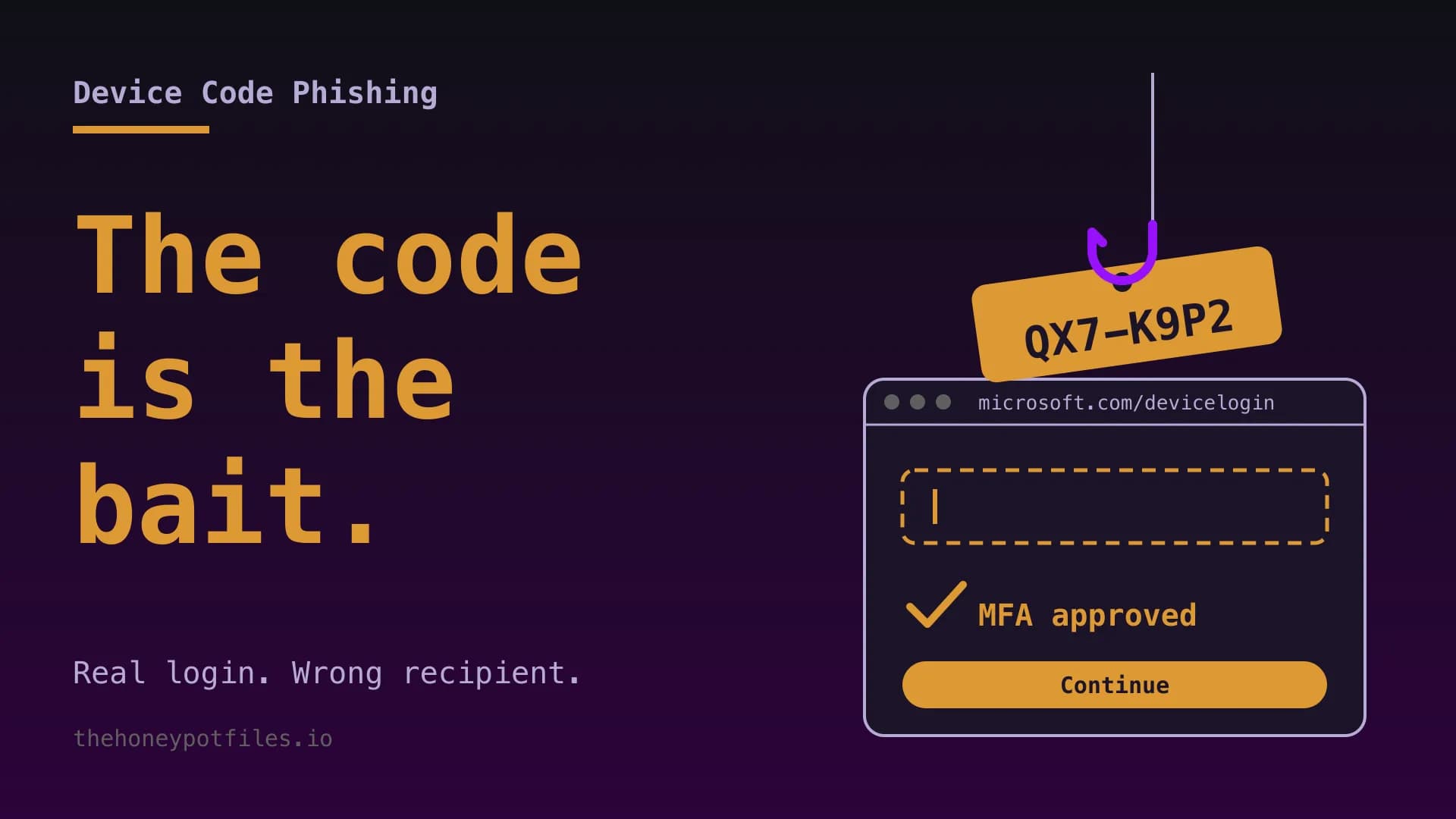
What if the phishing page isn't a phishing page? The URL checks out, the padlock is there, the Microsoft logo is real because it's actually Microsoft. Welcome to device code phishing: the con where you log yourself in and then politely hand the keys to the burglar. With a smile. And MFA.
Sounds like a Black Mirror episode? It's a Tuesday. Just this week, The Hacker News' weekly recap featured a phishing kit called MadApe, analyzed by Group-IB: business-themed PDF lures, fake document-sharing pages, and at the end the victim types a code into the genuine Microsoft page. No lookalike domain, no cloned login form. Just you, a code and a really bad decision.
What Even Is a Device Code?
You know it from your smart TV: the streaming app shows a code, you open a website on your phone, type it in, sign in, done. The TV has no keyboard, so it borrows yours. Technically it's the OAuth 2.0 Device Authorization Grant (RFC 8628), and Microsoft uses it for devices and tools without decent input: meeting room displays, some printers, command line tools.
The idea: a device asks for a code, a human approves that code somewhere else, the device gets a token (think of it as a building badge that works for a while without a password). What nobody checks: whether the device that asked for the code is actually in your meeting room. Or in a data center on another continent.
How the Attack Plays Out
- The attacker starts a device code sign-in with Microsoft and gets a fresh code.
- They send you that code by email, Teams message or PDF: "To open the document, enter this code at microsoft.com/devicelogin."
- You go to the real Microsoft page, enter the code, sign in and approve MFA.
- Microsoft hands the token to the device that requested the code. That's the attacker. Your mail, files and Teams chats are now a shared experience.
A Microsoft device code is usually valid for just 15 minutes. That's why the lures almost always come with a ticking clock: the meeting starts now, the link expires soon, the invoice has to go out today.
Why MFA Won't Save You Here
Here's the part that stings. You turned on MFA, maybe even passkeys. Good. Keep them. But in device code phishing, YOU are the one signing in. On the real site. With your real second factor. MFA checks that you are you. And you are, congratulations. The problem is who you're holding the door for.
Even phishing-resistant methods like FIDO2 keys don't automatically protect you, because the domain is legit. Rule of thumb: MFA protects your password. Device code phishing doesn't want your password.
How to Spot the Bait
- Someone sends you a code to type in somewhere, and you didn't start anything.
- The pointer to microsoft.com/devicelogin arrives by email, chat or PDF, not from a device sitting right in front of you.
- Urgency: meeting, deadline, invoice, the boss. The usual suspects.
- The Microsoft page asks if you're trying to sign in to an app that has nothing to do with what you're doing.
Simple rule: only type a device code if the device showing it is physically in front of you. If the code arrives by email, Teams or carrier pigeon, it's garbage. Or as your grandma would put it: never take candy, or codes, from strangers.
What Admins Should Do Now
1. Block the Device Code Flow
The biggest lever: in Microsoft Entra ID, use Conditional Access to block the device code flow for everyone who doesn't need it. In a new policy, under Conditions, pick Authentication flows, tick Device code flow, set Block access. Exceptions only for real devices like meeting room systems, neatly kept in their own group. Run it in Report-only mode first so you see who it hits before the help desk phone melts. You'll need Entra ID P1, which is included in Microsoft 365 Business Premium, for example.
2. Check Who Already Uses It
Before you block, look at the sign-in logs to see who uses device code at all. Without Sentinel, filter the sign-in logs in the Entra admin center by the authentication protocol Device code. With Microsoft Sentinel or Log Analytics, use KQL:
// Device code sign-ins over the last 30 days
SigninLogs
| where TimeGenerated > ago(30d)
| where AuthenticationProtocol == "deviceCode"
| summarize SignIns = count(), IPs = make_set(IPAddress) by UserPrincipalName, AppDisplayName
| order by SignIns desc
Someone from accounting signing in from a country where you don't even have a branch? That's not a smart TV. That's an incident.
3. If It Happened: Kill the Sessions
Resetting the password alone won't cut it, because the attacker doesn't have a password, they have tokens. Revoke the account's sessions, reset the password anyway, review the registered MFA methods and check the mailbox rules. Attackers love forwarding rules that quietly copy every invoice to the outside world.
# Revoke all sessions and refresh tokens for a user
Connect-MgGraph -Scopes "User.RevokeSessions.All"
Revoke-MgUserSignInSession -UserId "norbert@example.com"
4. Train Your Team With the Right Rule
The classic awareness tip "check the URL" falls flat here. Teach the new rule instead: we don't type in codes from strangers. Ever. Not even when Norbert says it's urgent. Especially not then.
Bottom Line
Device code phishing proves attackers no longer fight your security controls, they walk around them. The page is real, the MFA is real, only the recipient is wrong. The good news: one switch in Conditional Access takes the wind out of this trick for most companies.
So: block the flow, check the logs, brief the team. Turn on MFA. Think purple.